![99745fd6-afc8-495e-a1a1-c5fa6c1501aa.png]](https://resources.spectotechnology.com/hs-fs/hubfs/99745fd6-afc8-495e-a1a1-c5fa6c1501aa.png?width=300&height=113&name=99745fd6-afc8-495e-a1a1-c5fa6c1501aa.png)
Before starting, confirm:
-
The Micromate is powered on
-
The modem is connected properly
-
The antenna is securely attached
-
The device has cellular coverage
If the issue persists after completing the steps below, please contact the Specto Technology Support team at support@spectotechnology.com
1. Issue: Micromate is not connecting to THOR software, but the device is online, ACH is enabled, the modem is online, and all modem lights are green.
-
Solution: Hard Reset. Press and hold the 4 light blue buttons on the left-hand side until the screen goes white (sensor check, cancel, setup, start monitor)
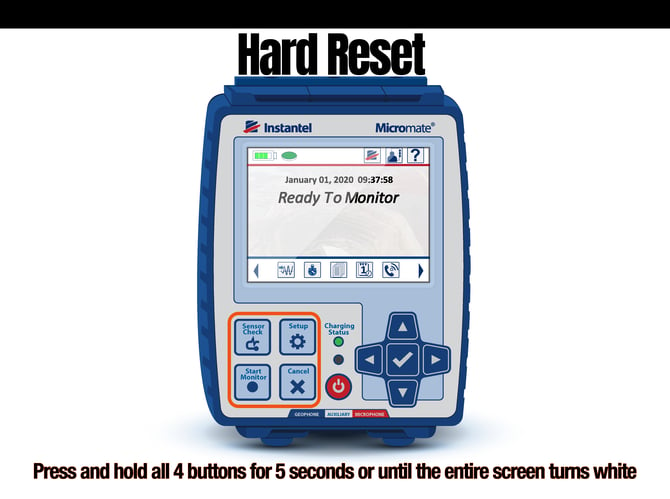
A hard reset will not erase any data or configurations stored on the unit.
2. Issue: Modem signal light indicators:
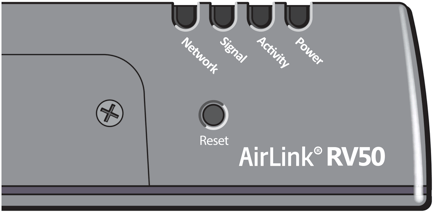
- LED Indicator
LED Color/Pattern Description LED Power Saving Mode Power Off
No power or input voltage ≥ 36 VDC or ≤ 7 VDC Solid Green Power is present. Green with Amber Flash Power is present, and the gateway has a GPS fix. Solid Red Standby mode Flashing Green When you press the reset button, flashing green indicates when to release the reset button to reboot the gateway. Flashing Red When you press the reset button, flashing red indicates when to release the reset button to reset the gateway to the factory default settings. Flashing Amber When you press the reset button for more than 20 seconds, flashing amber indicates when to release the reset button to enter Recovery mode. (See Recovery Mode on page 46.) Signal
Solid Green Good signal (equivalent to 3–5 bars) Off
Solid Amber Fair signal (equivalent to 2 bars) Off Flashing Amber Poor signal (equivalent to 1 bar)
If possible, Sierra Wireless recommends moving the modem to a location with a better signal.
Flashing Red Inadequate (equivalent to 0 bars)
Sierra Wireless recommends moving the modem to a location with a better signal.
-
- Power Light: Confirm the power light is solid green. A solid green light indicates the modem is receiving sufficient power and operating normally. If it is red or off, the modem is not receiving enough electricity to power up completely. Check the power source and confirm enough power is routed to the modem.
- Issue: Only the Power LED is Green While All Other LEDs Remain Off.
- Solution: Press and hold the modem reset button until the LED flashes yellow, then release the button. Allow the modem time to reboot fully.
- If the modem returns to displaying only a single green Power LED, the modem may require replacement.
- If the modem boots back up with all normal LED indicators, the modem is functioning properly.
- Solution: Press and hold the modem reset button until the LED flashes yellow, then release the button. Allow the modem time to reboot fully.
- Issue: Only the Power LED is Green While All Other LEDs Remain Off.
- Power Light: Confirm the power light is solid green. A solid green light indicates the modem is receiving sufficient power and operating normally. If it is red or off, the modem is not receiving enough electricity to power up completely. Check the power source and confirm enough power is routed to the modem.
-
- Data Light: Confirm the Data LED blinks green only while data is actively transferring through the modem. Intermittent blinking during communication is normal operation.
- Signal Light: Confirm the Signal LED is solid green. A solid green Signal LED indicates the modem has a strong cellular connection. The modem may still operate with an amber Signal LED; however, the cellular connection is weaker, and communication reliability, including email delivery, may be reduced.
Recommended Actions
-
Reposition the modem to an area with stronger cellular coverage.
-
Inspect the antenna connection and confirm it is securely attached.
-
If needed, use a geophone extension cable so the modem can be relocated to an area with better signal strength while keeping the geophone in the desired monitoring location.
-
-
- Issue: Continuous or Sequential Flashing of the Signal and Network LEDs
- Solution: Perform the following checks:
- Confirm the antenna is properly connected and not damaged.
- Verify the SIM card is securely seated in the SIM card slot.
- Power cycle the modem by disconnecting power for a minimum of one minute before reconnecting.
- Log in to ACEManager and confirm:
- The firmware is up to date
- The Network Link is operational
- Solution: Perform the following checks:
- Issue: Continuous or Sequential Flashing of the Signal and Network LEDs
-
If the issue persists, perform a factory reset by holding the reset button until the LED flashes green, then release.
-
- Network Light: Confirm that the Network light (cell tower icon) is Solid green. This means that the modem IP address has registered with the provider, and it is ready for use. A red light means that the modem cannot register with the provider. Check the antenna for damage and that it is securely screwed into the cellular port on the modem. If the light does not change, please contact the Specto support team at support@spectotechnology.com
- Issue: Blinking red Network light - No network available.
- Solution: Check that the antenna is screwed on properly and not damaged. Verify the SIM card is active and not damaged. Ensure the modem is updated to the latest firmware. If all else fails, factory reset. If the issue persists, replace the modem.
- Issue: Blinking red Network light - No network available.
- Network Light: Confirm that the Network light (cell tower icon) is Solid green. This means that the modem IP address has registered with the provider, and it is ready for use. A red light means that the modem cannot register with the provider. Check the antenna for damage and that it is securely screwed into the cellular port on the modem. If the light does not change, please contact the Specto support team at support@spectotechnology.com
3. Issue: Modem light is working, but the Micromate is still not connecting to THOR.
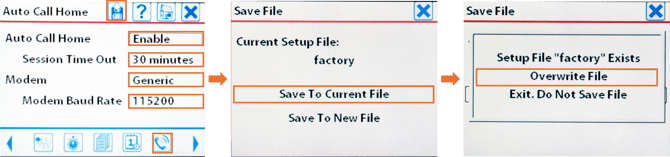
Solution: Confirm the Auto Call Home (ACH) is configured as shown below
1. Select the ACH button at the bottom right of the Micromate screen: 
2. Confirm the
- Auto Call Home: Enable
- Session Time Out: 30 Minutes
- Modem: Generic
- Modem Baud Rate: 115200
3. Once the settings match, select the Save button: 
4. Select the  a second time to Save to Current File.
5. Select the on the touch pad section of the Micromate to Overwrite file.